
This post may contain affiliate links. We may receive a small commission, at no cost to you, if you make a purchase.
Read Disclosure
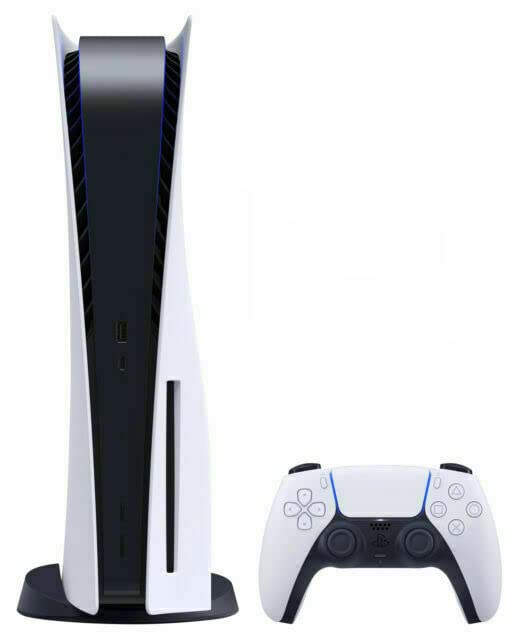
Running out of storage on your PlayStation 5 can be frustrating, especially when you have a growing collection of games. The internal 800GB drive fills up quickly, making it challenging to enjoy your favorite titles. In this guide, we’ll walk you through the process of upgrading your PS5 storage by installing an SSD. Additionally, we’ll cover how to use an external drive for your PS4 games, giving you ample space and flexibility.
Table of Contents
- Preparing for the Upgrade
- Opening the PlayStation 5
- Installing the Internal SSD
- Configuring the New SSD
- Using an External Drive
- Managing Your Storage
- Troubleshooting Tips
- Recommended Articles
- Pros and Cons of Upgrading Your PS5 Storage
- Frequently Asked Questions (Q&A)
- Conclusion
- Outbound Links
Preparing for the Upgrade
Before we begin, make sure you have the following items:
- A compatible SSD (we recommend a 2TB SSD for optimal space).
- A small Phillips screwdriver.
- An external drive if you plan to transfer PS4 games.
Choosing the Right SSD
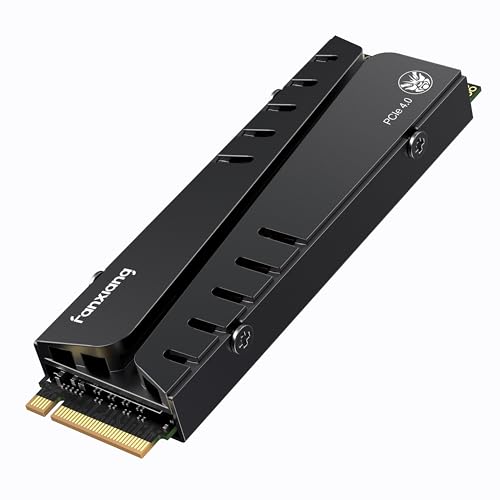
It’s important to select an SSD that is compatible with the PlayStation 5. Sony recommends SSDs with a read speed of 5500MB/s or faster. Brands like Samsung, WD Black, and Seagate offer models that meet these specifications.
Opening the PlayStation 5
To access the SSD slot, you need to open your PS5. Follow these steps:
- Power Off and Unplug: Ensure your PS5 is powered off and unplugged.
- Remove the Cover: Locate the PlayStation logo on the console. Hold the corner opposite the CD slot and push up, then slide the cover from left to right. Apply some force as it might be a bit tight.
Installing the Internal SSD
Once the cover is off, follow these steps to install your SSD:
- Locate the SSD Slot: Find the SSD slot and use your screwdriver to remove the cover.
- Remove the Screw and Spacer: Carefully take out the screw and spacer. Keep them safe as you’ll need them shortly.
- Insert the SSD: Position the SSD into the slot. If your SSD includes a heatsink, ensure it’s correctly aligned.
- Secure the SSD: Place the spacer under the SSD, then screw it in place to secure the drive.
Configuring the New SSD
After installing the SSD, you need to format and configure it:
- Turn On the PS5: Power on your PlayStation 5. The console should automatically detect the new SSD.
- Format the Drive: Follow the on-screen prompts to format the SSD. This process only takes a few minutes.
- Verify the Installation: Go to the configuration settings to ensure the SSD is recognized and check the available space.
Using an External Drive
For those with PS4 games, an external drive is a great solution. Here’s how to use it:
- Connect the External Drive: Plug in your external drive using a USB 3.0 port on your PS5.
- Transfer Games: Move your PS4 games from the internal drive to the external drive. You can play these games directly from the external drive without any special setup.
- Manage PS5 Games: If needed, transfer PS5 games from the internal storage to the new SSD to free up space on your primary drive.
Managing Your Storage
Properly managing your storage can optimize your gaming experience. Here are some tips:
- Prioritize Your Games: Keep frequently played games on the internal SSD for faster load times.
- Archive Infrequently Played Games: Move less frequently played games to the external drive.
- Regular Backups: Ensure you regularly backup your saved data to avoid any loss.
Recommended Articles
For more tips and guides on enhancing your PlayStation 5 experience, check out these recommended articles:
- How to Wall Mount PS5 and Accessories
- Unboxing PS5 Bundle: Horizon Forbidden West Bundle
- Fast Charging Dual Controller Station for PS5
Troubleshooting Tips
If you encounter issues during the upgrade, consider these troubleshooting tips:
- SSD Not Recognized: Ensure the SSD is properly seated in the slot and securely fastened.
- Formatting Issues: Restart your PS5 and try formatting the SSD again.
- Performance Issues: Make sure your SSD meets the recommended specifications by Sony.
Pros and Cons of Upgrading Your PS5 Storage
Pros
- Increased Storage Capacity: With an upgraded SSD, you can store more games and media files.
- Faster Load Times: High-speed SSDs reduce game load times and improve overall performance.
- Flexibility: Use an external drive for older games, freeing up internal space for new titles.
- Easy Installation: Upgrading the SSD is a straightforward process with minimal tools required.
Cons
- Cost: High-capacity SSDs can be expensive.
- Compatibility Issues: Not all SSDs are compatible with the PS5; choosing the right one is crucial.
- Risk of Damage: Improper installation could potentially damage the SSD or the console.
Frequently Asked Questions (Q&A)
Q: Can I use any SSD for my PS5?
A: No, not all SSDs are compatible. Ensure the SSD meets Sony’s specifications, including a read speed of at least 5500MB/s.
Q: Do I need a heatsink for my SSD?
A: Yes, it’s recommended to use an SSD with a heatsink to prevent overheating and ensure optimal performance.
Q: Can I still use my external drive for PS5 games?
A: No, PS5 games need to be stored on the internal SSD or an installed M.2 SSD. However, you can store and play PS4 games from an external drive.
Q: Will upgrading my SSD void the PS5 warranty?
A: No, Sony has designed the PS5 to allow SSD upgrades without voiding the warranty. Just ensure you follow the installation guidelines.
Q: How much storage do I really need?
A: This depends on your gaming habits. A 2TB SSD is a good balance for most gamers, but heavy users might opt for larger capacities.
Conclusion
Upgrading your PlayStation 5 storage is a straightforward process that can significantly enhance your gaming experience. By following this guide, you’ll have ample space for all your games, whether stored internally on a new SSD or externally on a USB drive. Enjoy seamless gameplay with your expanded storage!
For additional information on related topics, visit:



AFFILIATED LINKS/ADVERTISING NOTICE All links are Affiliated where possible. When you click on links to various merchants posted here and make a purchase, this can result in me earning a commission from qualifying purchases.”; I am a participant in the Amazon Services LLC Associates Program, an affiliate advertising program designed to provide a means for sites to earn advertising fees by advertising and linking to AMAZON Sites (including, but not limited to Amazon US/UK/DE/ES/FR/NL/IT/CAN) Last update on 2026-03-09
Uau, maravilhoso layout do blog Há quanto tempo você bloga para você fazer o blog parecer fácil A aparência geral do seu site é ótima, assim como o conteúdo
Não tenho certeza de onde você está conseguindo suas informações, mas é um bom tópico. Preciso passar algum tempo aprendendo muito mais ou entendendo mais. Obrigado pelas informações magníficas. Eu estava procurando essas informações para minha missão
obviously like your website but you need to test the spelling on quite a few of your posts Several of them are rife with spelling problems and I to find it very troublesome to inform the reality on the other hand Ill certainly come back again